


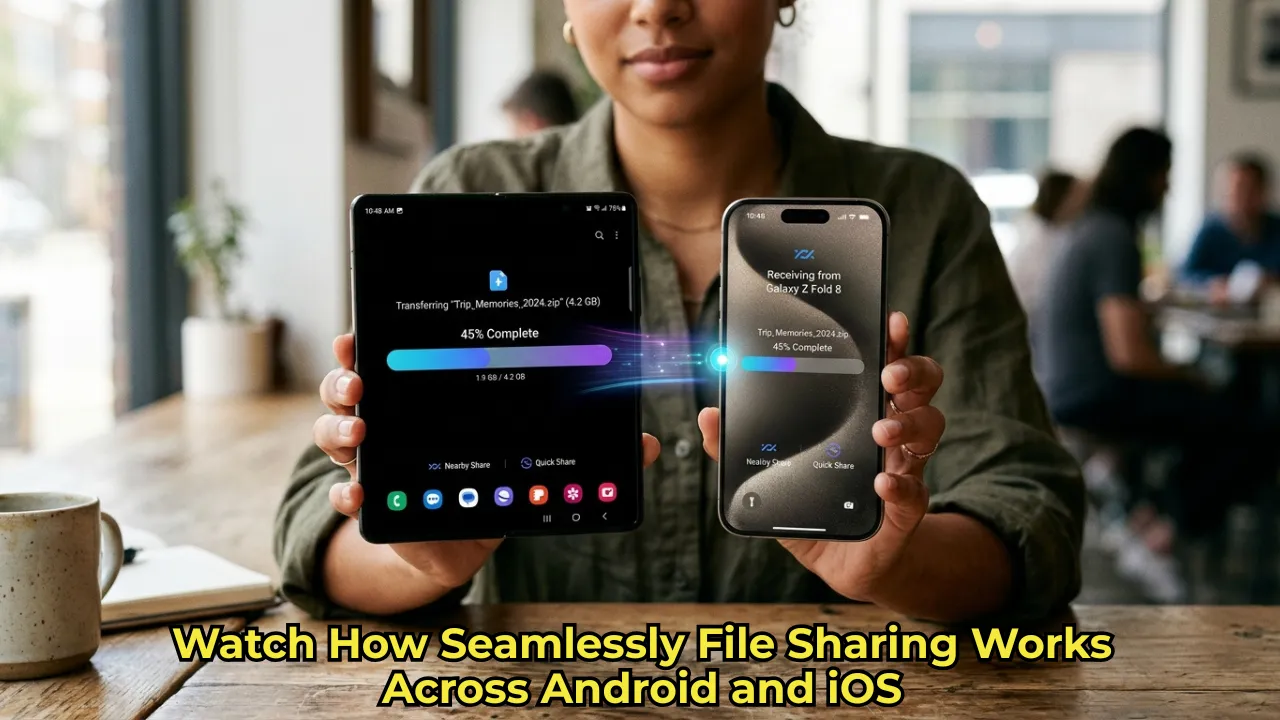
Have you ever tried sending a high-resolution photo or video from an Android to an iPhone, only to have it arrive as a compressed, pixelated mess? The long-standing ecosystem wall between Samsung and Apple is finally crumbling. If you’ve just picked up the newest Samsung flagship, you’ll be thrilled to know that using AirDrop via Quick Share on Galaxy Z Fold 8 works like an absolute dream. No more clunky third-party apps, cloud drive links, or emailed attachments—just lightning-fast, native file sharing across rival operating systems.
Why AirDrop via Quick Share on Galaxy Z Fold 8 is a Game-Changer
For years, transferring files between the two biggest smartphone platforms was a frustrating chore. However, following a recent Google update to its Android-based Quick Share tool, the software can now communicate directly with Apple’s AirDrop protocol.
While Samsung rolled this functionality out to older models recently, the true polished experience arrives right out of the box with the latest generation of foldables. Because the Galaxy Z Fold 8, Z Fold 8 Ultra, and Z Flip 8 all launch with One UI 9 (based on Android 17), they are perfectly optimized for this cross-platform magic.
Testing AirDrop via Quick Share on Galaxy Z Fold 8 Speed
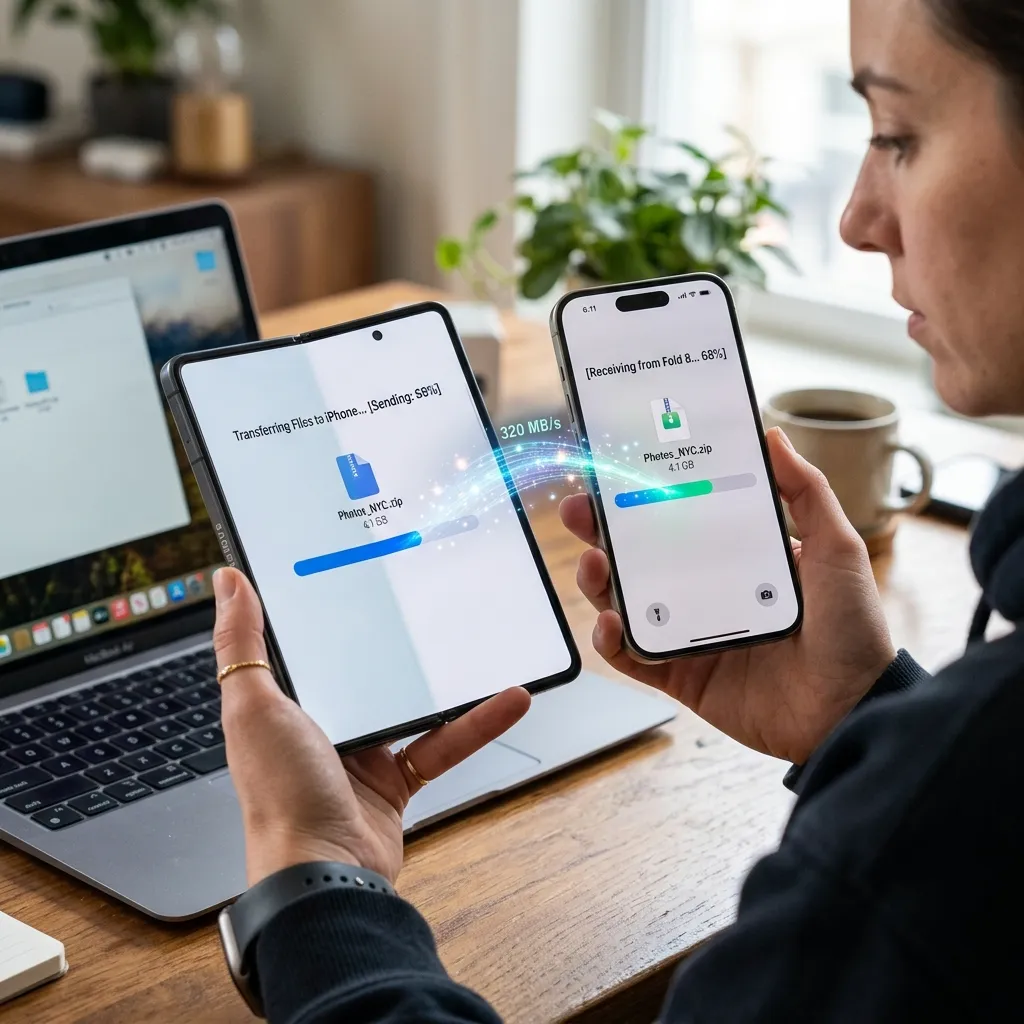
As tech enthusiasts, the first thing we do with a new device is push its daily-use features to the limit. We immediately tested sending a high-resolution portrait photo from the massive inner screen of the Z Fold 8 directly to an iPhone Air, and then bounced a file right back.
Read More: Google Pixel 11 Launch Expectations: 5 Things Coming August 12
The result? It took less than 10 seconds to securely share the file. Experiencing AirDrop via Quick Share on Galaxy Z Fold 8 firsthand proves that the days of green-bubble file compression are officially behind us. It is completely seamless.
How to Enable AirDrop via Quick Share on Galaxy Z Fold 8 and iPhone
If you want to try this out for yourself, there is a minor setup process required to ensure both devices can “see” each other securely. Here is how to configure your settings for a flawless transfer:
Step 1: Prep Your Samsung Device
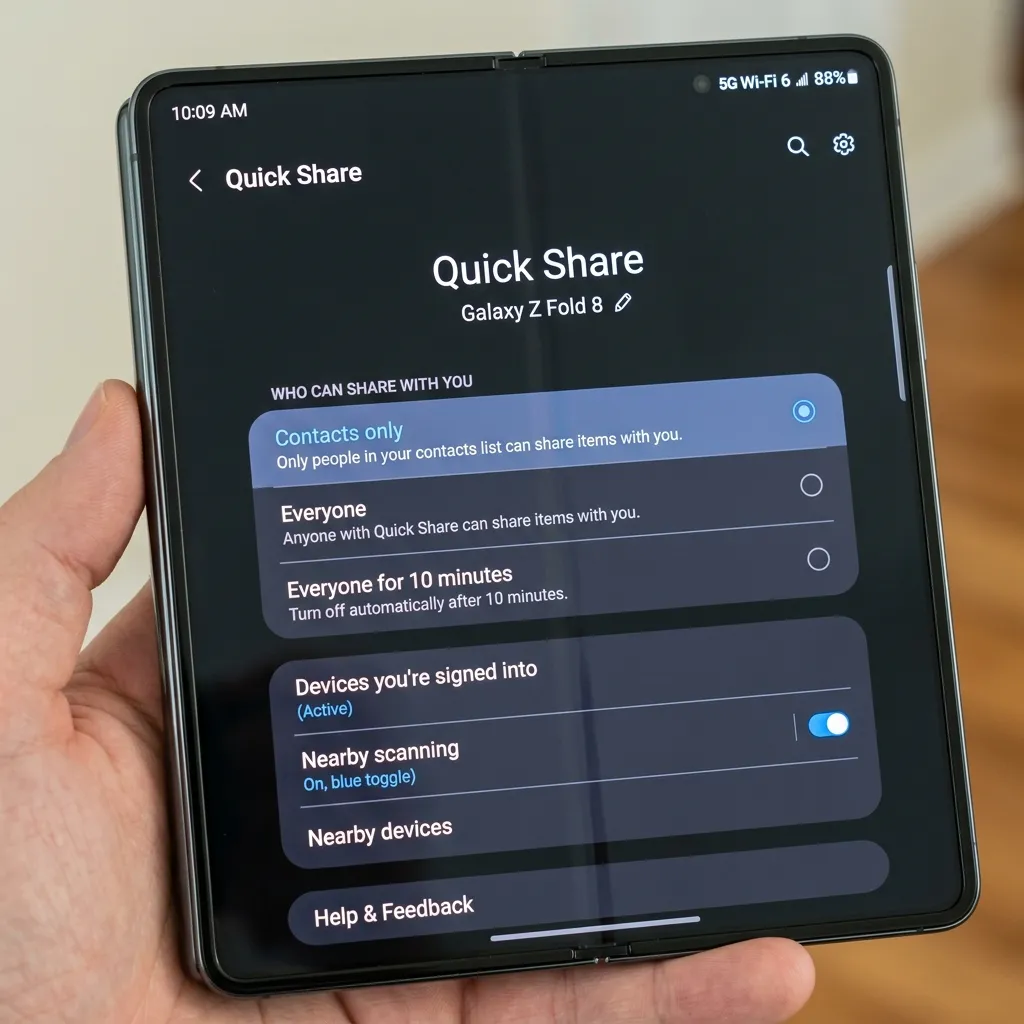
To send or receive files on your Samsung, swipe down to access your quick toggles and long-press the Quick Share icon. In the settings menu, change your visibility by selecting ‘Everyone (10 minutes)’. This ensures your Galaxy Z Fold 8 is temporarily discoverable by nearby iOS devices.
Step 2: Prep the Receiving iPhone
On the Apple side, the recipient needs to open their Control Center. By long-pressing the network block (where the Wi-Fi and Bluetooth icons are), they can access the AirDrop menu and select ‘Everyone for 10 minutes’.
Read More: 7 New iOS 27 Features Coming to Your iPhone (Siri AI & More)
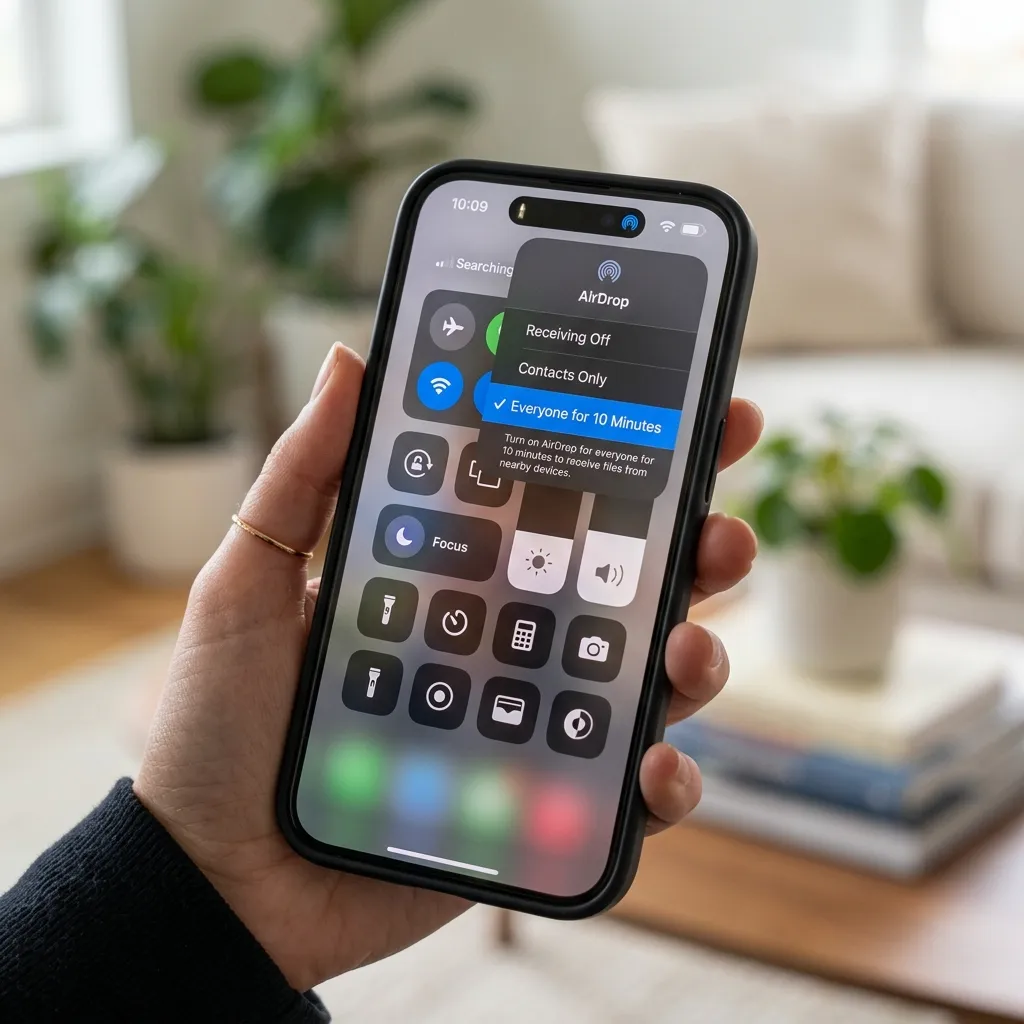
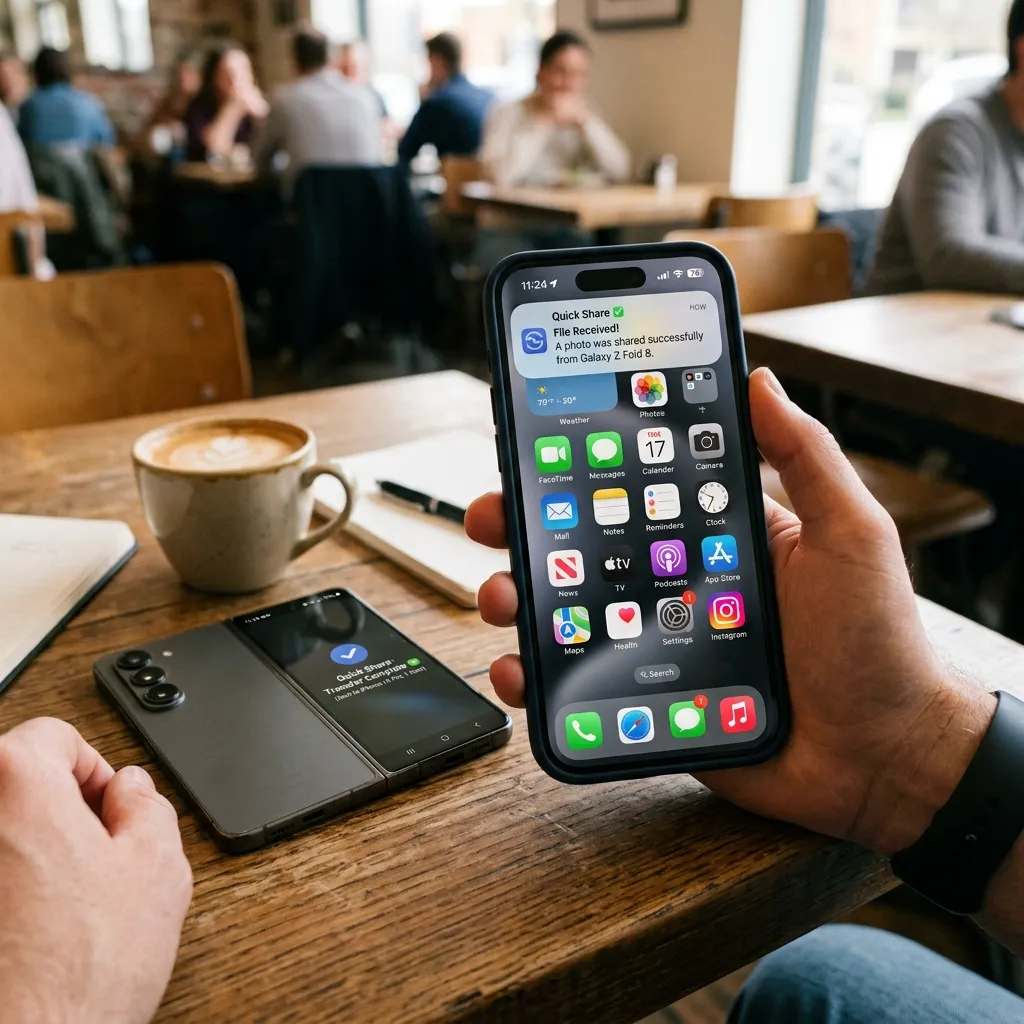
Once both devices are discoverable, you can simply tap “Share” on your Samsung gallery, select Quick Share, and watch the iPhone pop up as an available recipient.
Whether you’re sharing vacation photos with friends or sending documents to a colleague, this integration is a massive win for mobile users everywhere. Happy file-sharing!